

Connect GitHub
This guide walks you through authenticating your Genie server with GitHub so you can clone repos, push code, create pull requests, and use the GitHub CLI directly from your terminal.
Prerequisites
A Genie account with a running server
A GitHub account
Step 1: Run gh auth login
Open the terminal in your Genie dashboard and run:
gh auth login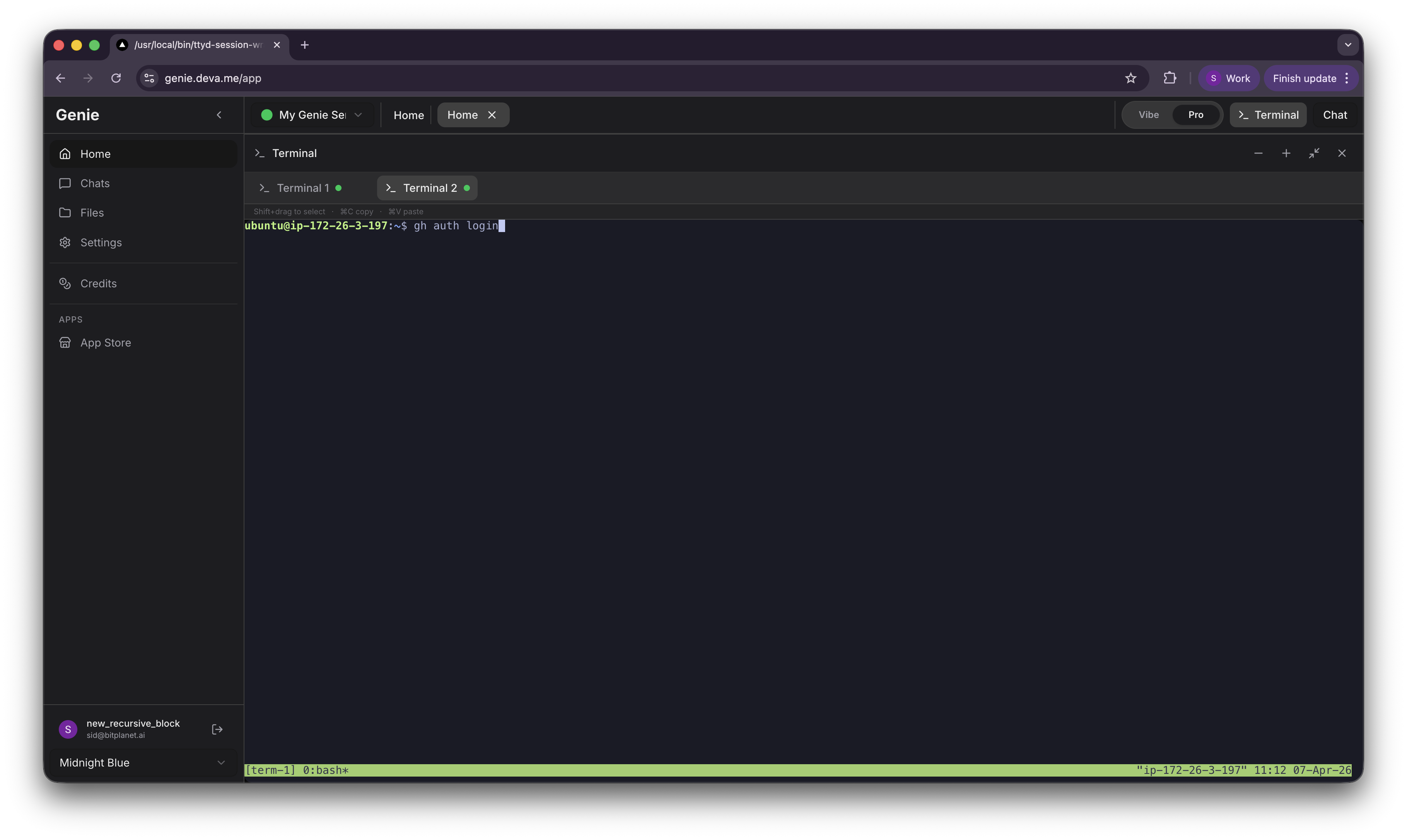
Step 2: Select Account Type
Choose GitHub.com (or GitHub Enterprise Server if your organization uses it).

Step 3: Choose Git Protocol
Select HTTPS as your preferred protocol for Git operations.
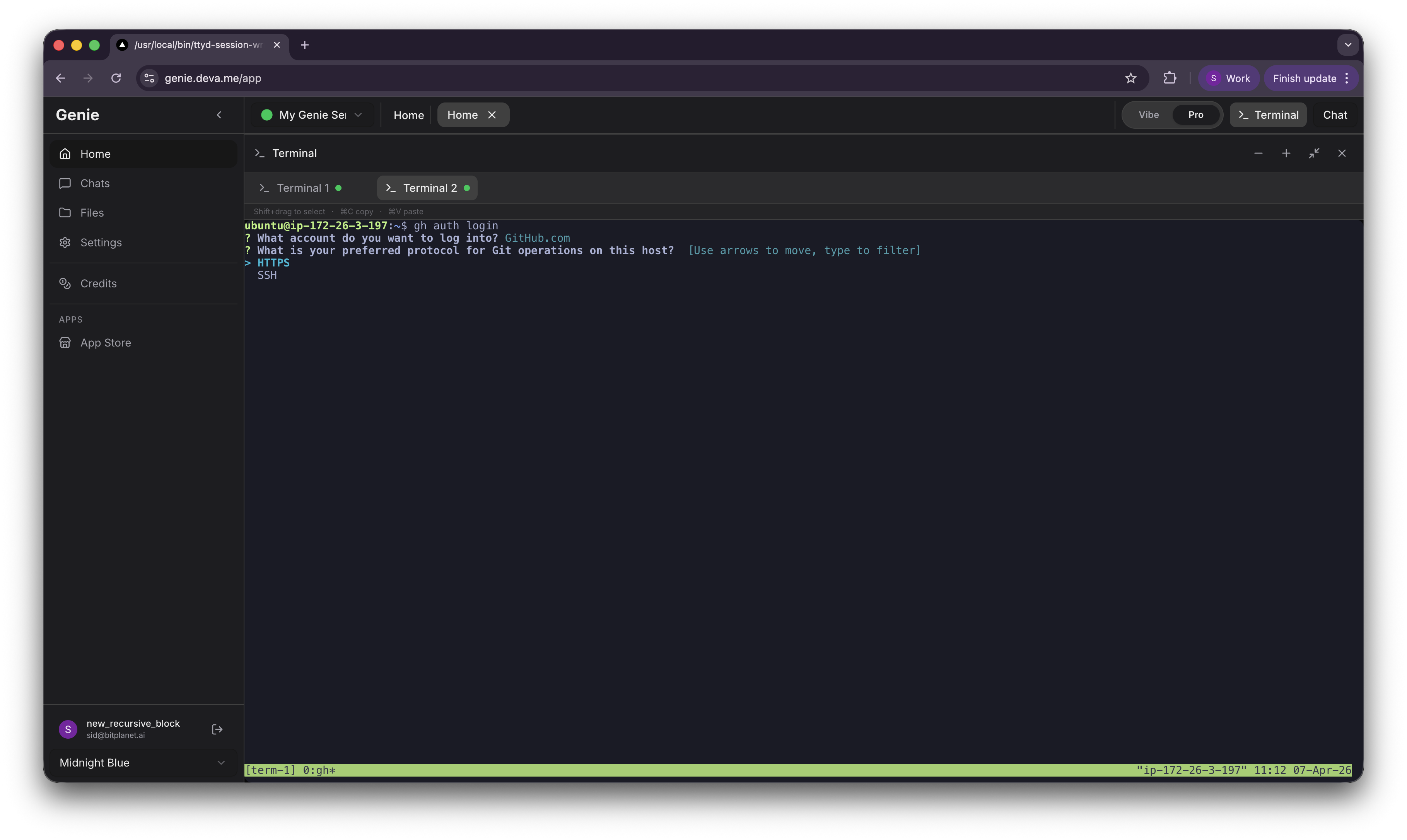
Step 4: Confirm Git Credentials
When asked "Authenticate Git with your GitHub credentials?", type Y and press Enter.

Step 5: Choose Authentication Method
Select Paste an authentication token. The CLI will show you the minimum required scopes: repo, read:org, workflow.

Step 6: Generate a Personal Access Token
Open github.com/settings/tokens in your browser.

Click Generate new token and select Generate new token (classic).
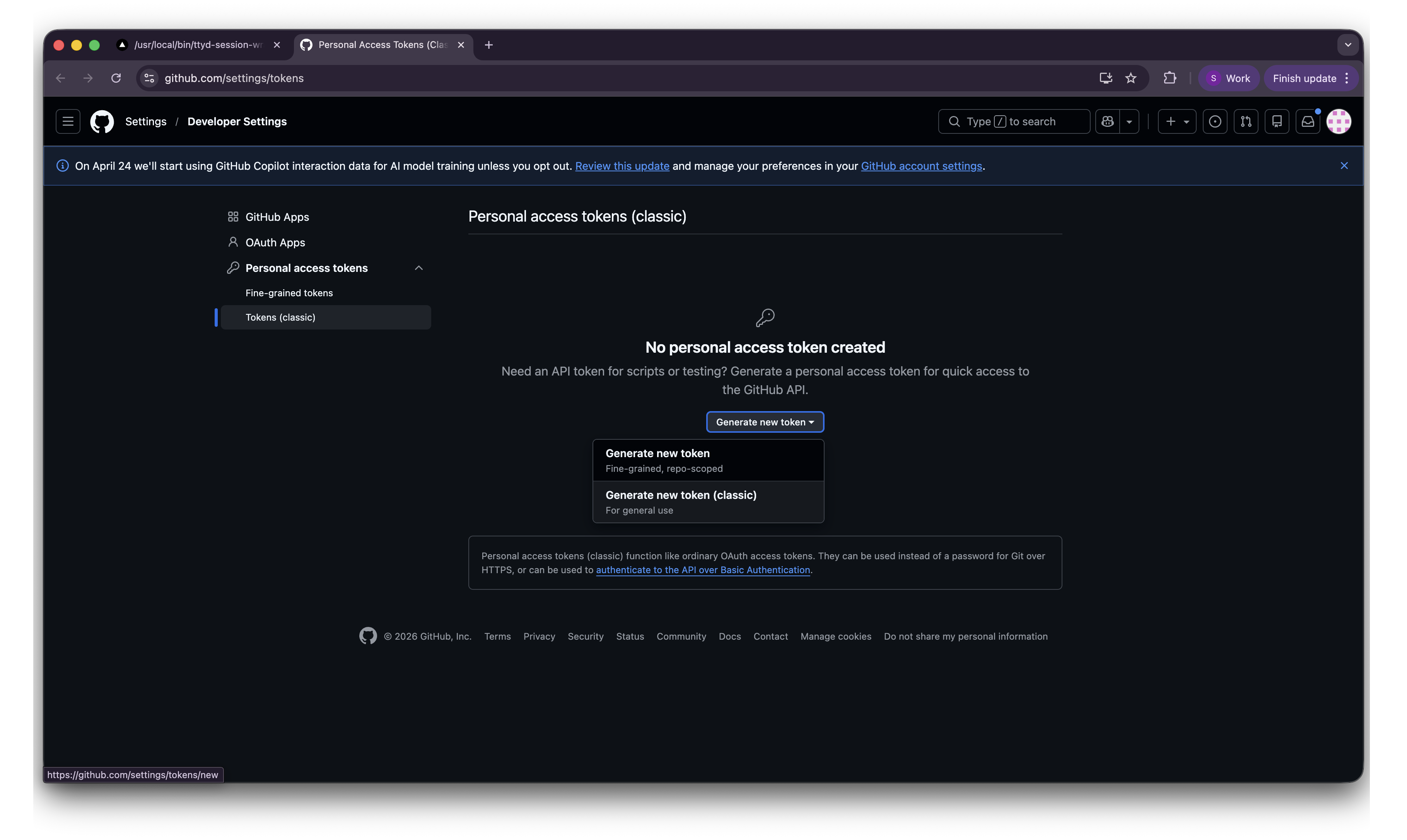
Fill in the details:
Note — a description (e.g. "Genie server")
Expiration — choose a duration
Scopes — select at minimum:
repo,read:org,workflow
Click Generate token.

Step 7: Copy the Token
Your token is displayed once. Copy it immediately — you will not be able to see it again.

Step 8: Paste Token in Terminal
Go back to the Genie terminal and paste the token at the prompt.

Step 9: Verify Authentication
You should see a confirmation message: "Logged in as <your-username>".
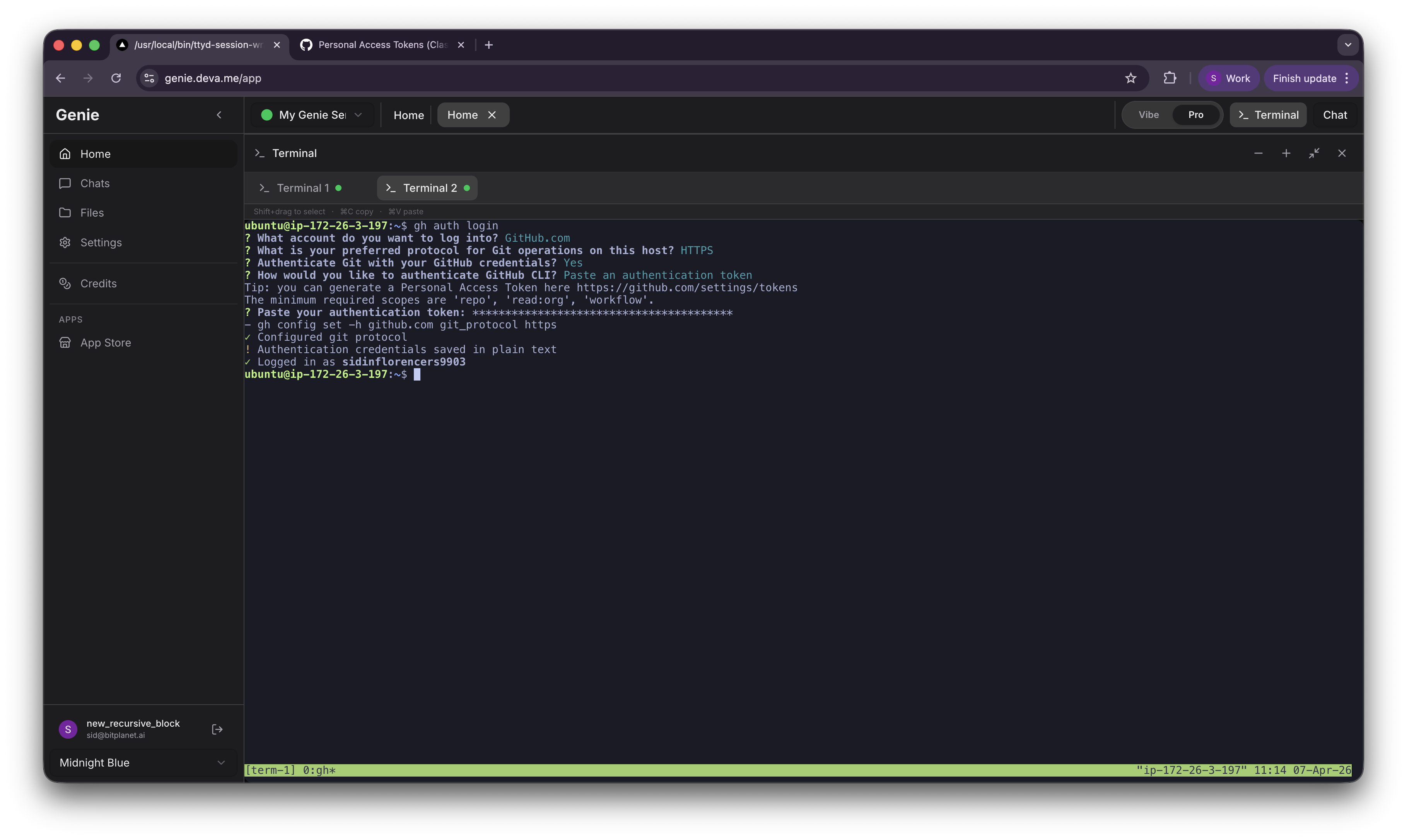
You can now use git and gh commands with full access to your GitHub account.
Tips
Minimum required token scopes:
repo,read:org,workflowYou can re-authenticate anytime by running
gh auth loginagainTo check your current auth status:
gh auth statusThe token is stored on your Genie server — keep your server credentials secure
If your token expires, generate a new one and re-authenticate
Last updated