

Connect OpenAI Codex (UI)
This guide walks you through connecting OpenAI Codex to your Genie server using the dashboard UI. Once connected, Genie uses your ChatGPT account to power AI interactions.
Prerequisites
A Genie account with a running server
An OpenAI account with a ChatGPT subscription
Step 1: Open LLM Integrations
Go to your Genie dashboard → Settings → Server. Scroll down to LLM Integrations and select the Codex tab. Click Connect Codex CLI.

Step 2: Sign In to OpenAI
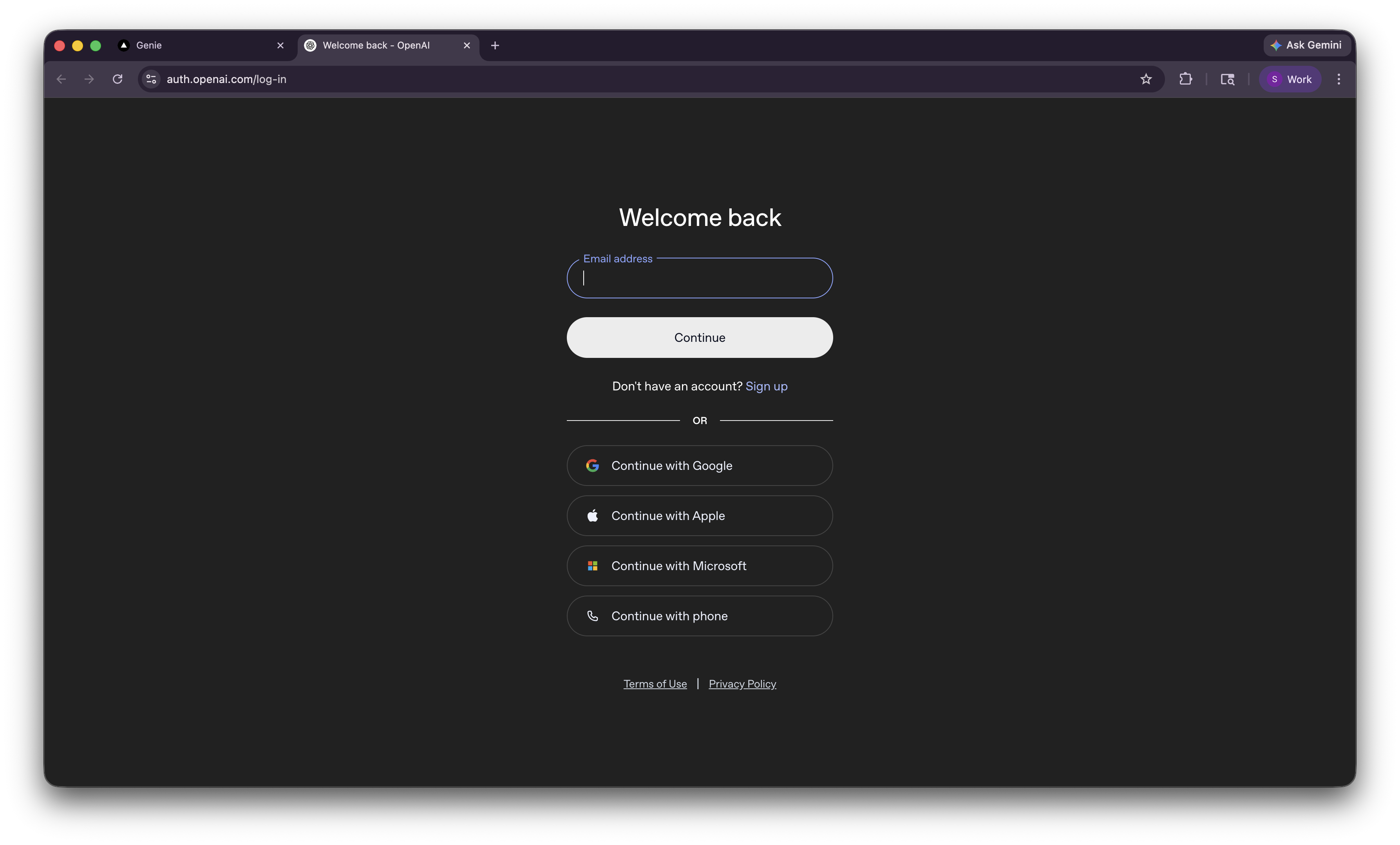
A new tab opens to the OpenAI login page. Enter your email and password, or use one of the social login options (Google, Apple, Microsoft).
Step 3: Authorize Codex
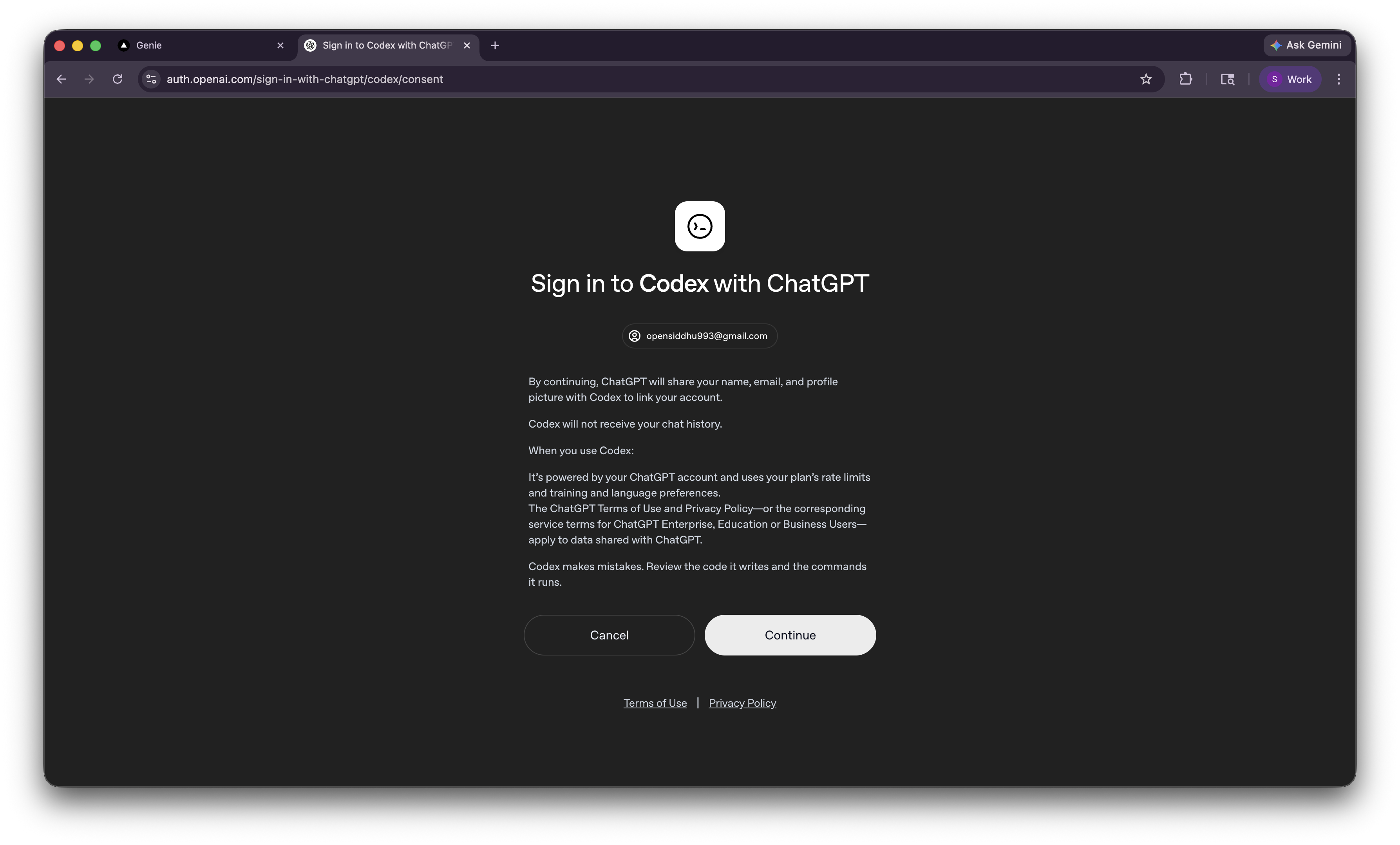
After signing in, you will see a consent page. This explains that Codex will be linked to your ChatGPT account and will use your plan's rate limits. Click Continue.
Step 4: Copy the Callback URL
Your browser redirects to a localhost URL. This will show a connection error — this is expected on remote servers.
Copy the full URL from your browser's address bar. It contains the authorization code needed to complete the setup.

Step 5: Paste the URL in Genie
Go back to the Genie settings tab. Paste the callback URL into the input field and click Connect.

Step 6: Connected
All steps show green checkmarks. You will see the message: "Codex CLI connected — your server is ready!"

Your server is now using OpenAI Codex for AI interactions.
Tips
The localhost connection error in Step 4 is expected — just copy the URL from the address bar
Codex uses your ChatGPT plan's rate limits and training preferences
You can also set up Codex via the terminal — see Set Up OpenAI Codex
To verify the connection, go to Chat and send a message to Genie
Last updated